
Agoda YCS: Connect a Channel Manager and Get Approved
Agoda YCS connect channel manager: where the setting is, what the property ID is, why 'not accepted' can last a day or two, and what changes after.
The short answer
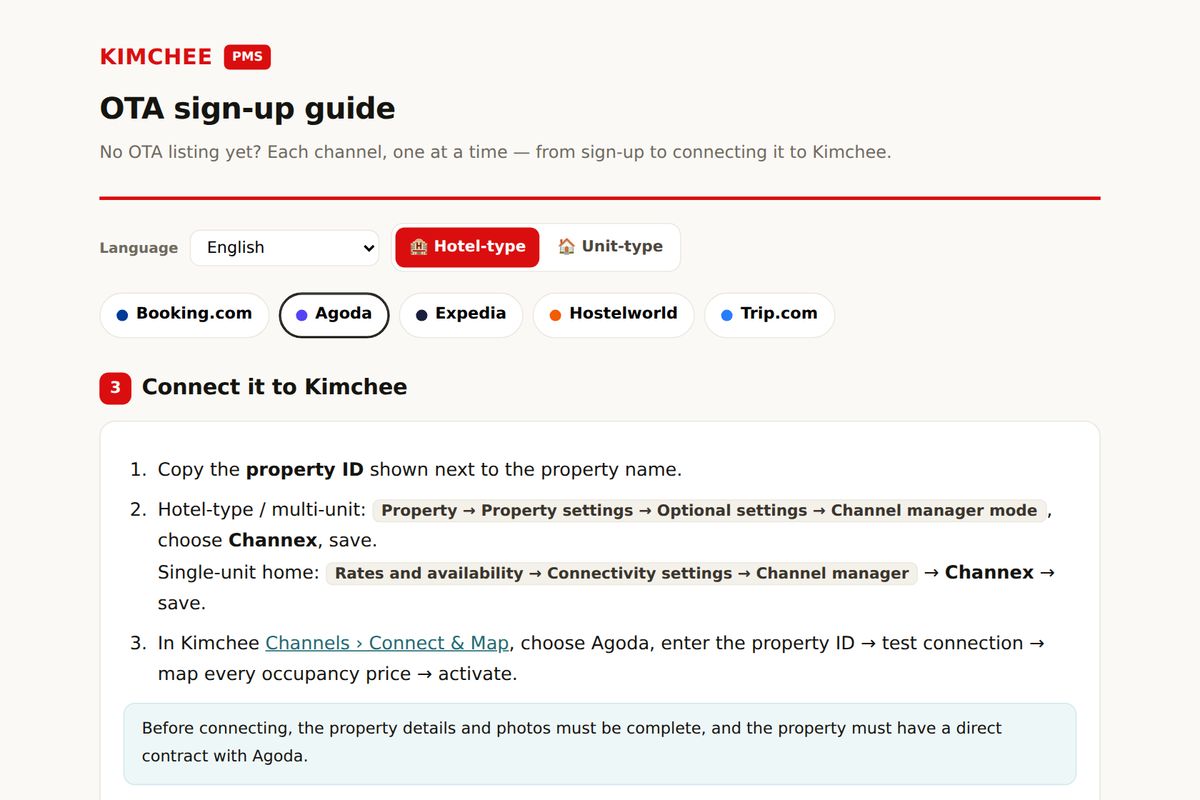
Connecting Agoda to a channel manager takes two steps. In YCS (Agoda's extranet) you switch the property to channel-manager mode, choose your provider and enter the property ID. On the channel manager side you enter the same property ID and request the connection. Agoda then has to accept the link. Until it does, the status can read 'not accepted' or 'pending' for a few hours, and sometimes a day or two. In most cases that wait is Agoda processing the request, not a sign that you made a mistake.
The rest of this guide covers where the setting is, what the property ID is, what to check while you wait, and what changes in YCS afterwards. Agoda changes its extranet from time to time. The menu names below are what to look for, not a promise that your account labels them the same way today.
Before you start
- Use an admin login. Staff accounts with limited permissions often cannot see connectivity settings. If the option is missing, check this first.
- Make sure the listing is live and bookable. The property should be active, with at least one room type and one rate plan set up. A closed or half-finished listing is a common reason a connection stalls.
- Decide who controls rates and availability. After the switch, the channel manager is the source of truth. Do not keep editing the same rates by hand in YCS and expect both to stick.
- Have your room list ready. You will map Agoda room types to your own rooms. For dorms, decide how you count beds. Agoda sells by room type, while your PMS may think in individual beds.
Where the setting is in YCS
Log in to YCS and select the property you want to connect. The connection option normally sits in the account or property settings area, under a name like Connectivity, Channel manager or Connectivity provider. Inside it you pick your provider from a list and save.
If you cannot find it, do not guess. Use the help or search box in YCS and look for 'connectivity provider'. Failing that, ask Agoda support for the exact path on your account. Some properties, especially ones with an unusual account structure, see a different layout.
Two things to watch when you save:
- Pick the right provider. If you choose a similar-sounding name, the request will never match on the other side and will sit there as not accepted.
- Check whether another connection already exists. If the property was linked to a different provider before, that link may need to be removed or changed first. If the option is greyed out, ask Agoda.
What the property ID is
The property ID is the number Agoda uses to identify your listing. It is not your login email, not a booking reference and not the property name. In YCS it is normally shown near the property name or in the property details, and it often appears in the page address once you have selected the property. It is numeric.
This is where most failed connections start. Common mistakes:
- Copying the ID of a different property under the same login. If you manage several listings, confirm that the one selected in YCS is the one you are connecting.
- Pasting it with a trailing space or a stray character.
- Typing a digit wrong. Copy and paste instead of retyping.
- Entering a different ID on each side. YCS and the channel manager must have exactly the same number.
If you run several properties, keep a short sheet listing each property name next to its Agoda property ID. It saves a lot of confusion later.
The order that works
- In your channel manager, find the Agoda connection screen and enter the property ID. Start the connection request.
- In YCS, open the connectivity settings, select your provider and enter the same property ID. Save.
- Note the time and the status you see on both sides.
- Wait. Do not remove and re-add the request every hour.
Some providers want you to start on their side first, and some want YCS first. Follow the instructions of your channel manager for the order. What matters most is that both sides end up with the same ID and the same provider.
Why the status can stay 'not accepted'
Once both sides have asked for the link, Agoda still has to approve it. Your channel manager cannot speed that up from its end. Typical reasons it takes time:
- It is a queue. The request is processed by Agoda's connectivity team or system, not in real time. A few hours is normal. A day or two is not unusual, especially over weekends or holidays.
- The two requests have not found each other yet. Until Agoda sees a matching request from both you and the provider, the status stays unaccepted.
- A detail does not match. A wrong property ID or the wrong provider will not raise a loud error. It just never gets accepted.
- The listing has a problem of its own. Missing room types, no active rate plan, or an account issue can hold the connection.
So 'not accepted' on its own is not a failure. It becomes a problem only when it outlasts a reasonable wait, or when you can see that something does not match.
What to check while you wait
- Compare the IDs once more. Open YCS and your channel manager side by side and read the numbers digit by digit.
- Confirm the provider name in YCS. Make sure it is the one you intended.
- Look at your room types and rate plans. Each room type you want to sell should exist, be active and have at least one rate plan.
- Do not change the structure mid-wait. Renaming or deleting room types while the request is pending can leave you with mapping problems later.
- Keep selling as usual. Until the connection is accepted, YCS is still your live control panel. Keep rates and availability current there so you do not oversell during the gap.
- Check the email on the Agoda account. Acceptance or questions from Agoda may arrive by email, so look in spam too.
If the status is unchanged after a day or two, contact Agoda support with the property ID and the name of the provider you selected. Ask them to confirm that the request is on their side and that it matches. Also tell your channel manager's support the time you submitted the request. Both sides can then look at the same case.
What changes in YCS once the channel manager takes over
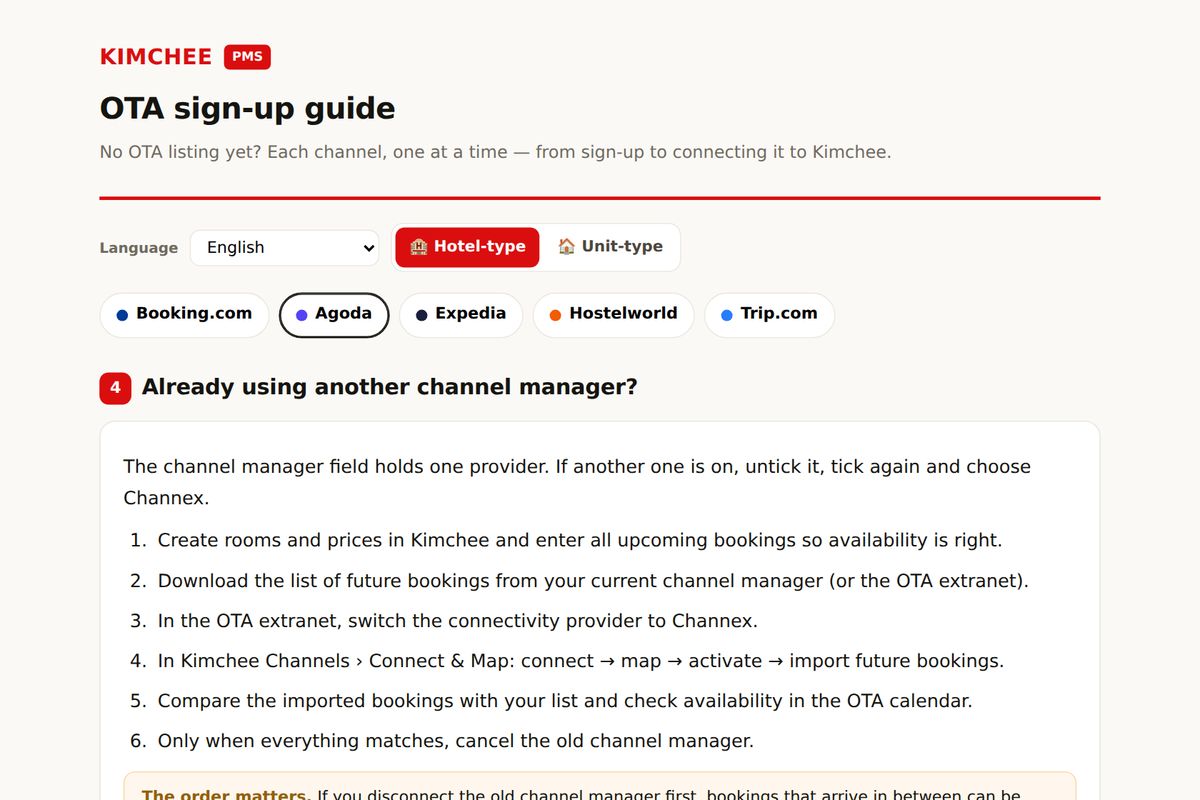
When the connection is accepted, the channel manager starts pushing rates and availability to Agoda, and Agoda bookings flow back to the channel manager. In practice:
- Rates and availability are edited in the channel manager. Changes you make by hand in YCS may be overwritten at the next update, or may be blocked, depending on how your account is set up. Treat the YCS calendar as a place to look, not to edit.
- Bookings arrive in your PMS or channel manager. You no longer copy reservations from YCS into your calendar. That removes the common overbooking route, which is a booking sitting in YCS that nobody blocked elsewhere.
- Room mapping matters. Every Agoda room type must map to a room, or to a group of beds in the case of dorms. An unmapped room type is one that does not get updated. Check each one once after the first sync.
- Things that usually stay in YCS. Property content such as photos, descriptions and policies, along with Agoda's own promotions and account matters, are normally still handled in YCS. Check on your account which items the channel manager covers and which it does not.
After the first sync, do a short test. Close one room type for one night in the channel manager, then look at YCS to see that the same night is closed. Open it again and confirm it reopens. Then check a future date with a known price, and confirm that the rate on Agoda matches the rate in your system.
Where Kimchee fits
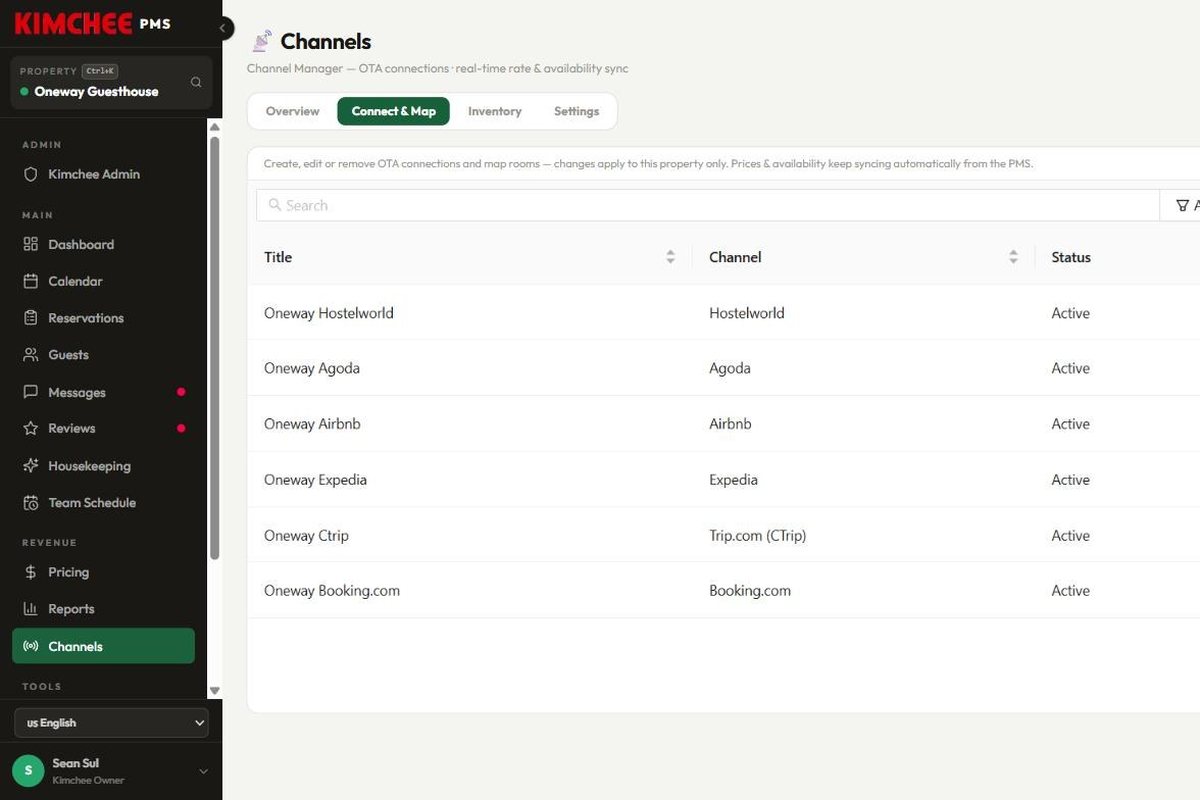
Agoda is one of the channels the Kimchee channel manager connects to, alongside Airbnb, Booking.com, Hostelworld, Trip.com and Expedia. The full list is on the channels page. The channel manager is included in the PMS, with no separate channel fee. The PMS itself is free with no time limit. The monthly fee is only for the channel manager, and the first month is free from the day you connect your first OTA. Connecting more OTAs does not change the price. Lite starts at $45 and Pro at $70 for 1–10 rooms, shown in local currency in some countries. The rest is on the pricing page.
The steps above are the same whichever provider you choose, because the Agoda side works the same way. If you are comparing options, look at how each handles dorm beds, which plan the channel manager sits on, and whether you will pay per channel. For a walkthrough of how a connection works inside Kimchee, see how it works, and for common questions see the FAQ.
A short checklist
- Log in to YCS with an admin account and select the right property.
- Copy the property ID and paste it into the channel manager.
- Choose the right provider in YCS and save.
- Wait a few hours, and up to a day or two, without resubmitting repeatedly.
- Check IDs, provider, room types and rate plans while waiting.
- After acceptance, map every room type and test one closure and one price.
- From then on, edit rates and availability only in the channel manager.
If you want to see how this looks with your own rooms and dorms, you can contact us. We run guesthouses and Airbnb rentals ourselves, and we know what it is like to wait for that status to change.
Run it on a system built by operators
Kimchee is the PMS our own team uses every day — we run guesthouses and Airbnb homes ourselves. The channel manager is included — no separate contract, no per-channel bill.