
Booking.com sign-up guide for guesthouses and rental homes
How to list a new property on Booking.com: the official sign-up link, what to prepare, hotel-type vs homes at different addresses, and connecting a channel manager.
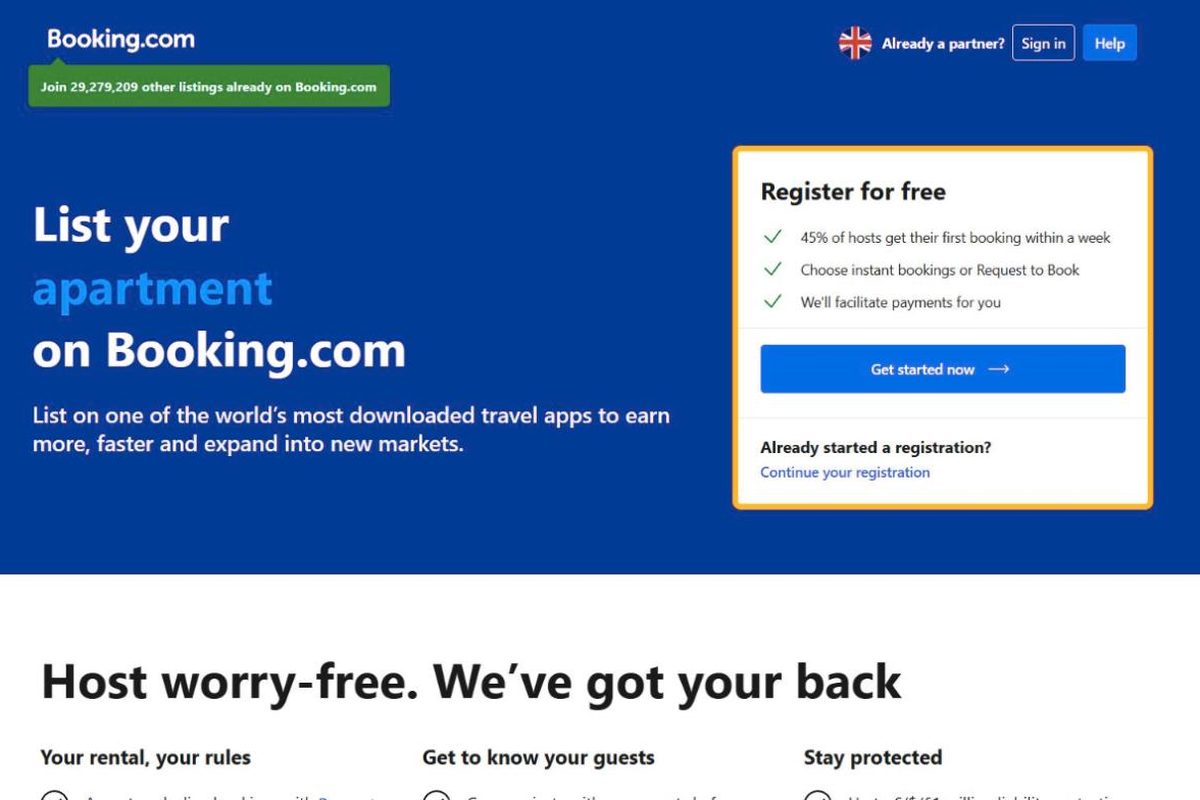
This guide is for owners who have no Booking.com listing yet. We run our own guesthouses in Busan and list them on the same OTAs, so the steps below follow the real sign-up flow as it looked on 6 October 2026.
Booking.com at a glance
Listing is free; you pay commission on bookings. The rate is shown at the Agreement step at the end of sign-up. You either get a monthly commission invoice or let Booking.com take the guest's payment and pay you out.
It reaches guests worldwide and lists everything from hostels to whole homes, so most properties start here.
Decide first which way you will register. Hotel-type means one address with several rooms (a guesthouse, hostel or hotel): one property on Booking.com with room types inside. Unit-type means separate homes or apartments at different addresses: each address is its own property. Ten homes are ten properties, and one login is enough to manage them all.
Sign-up link and first screen
Open the official Booking.com sign-up page in English: https://join.booking.com/index.html?lang=en-gb. The screenshot at the top of this article is the real first screen. The steps after it only appear once you have an account, so they are described in text. OTAs rename menus from time to time, so labels may differ slightly.
What to prepare
🇰🇷 Properties in Korea — Booking.com and Agoda won't open a listing without a business report certificate (since late 2024). Also have your business registration and a bank account in the business name.
🇹🇭 Properties in Thailand — you may be asked for a hotel/operating licence or company registration. The payout account must match the property owner.
- Property name and address (in English)
- Photos — the more the better (rooms, bathroom, outside, common areas)
- Rooms — room types, beds, max guests, number of rooms
- Base price and policies — check-in/out times, cancellation, children/pets
- Payout bank account and contact details (email, mobile)
Before you start, put your photos, room details and house rules in one folder. The sign-up asks for them in the middle of the flow, and having them ready means you can finish in one sitting instead of saving a half-done listing.
Hotel-type: guesthouse, hostel or hotel
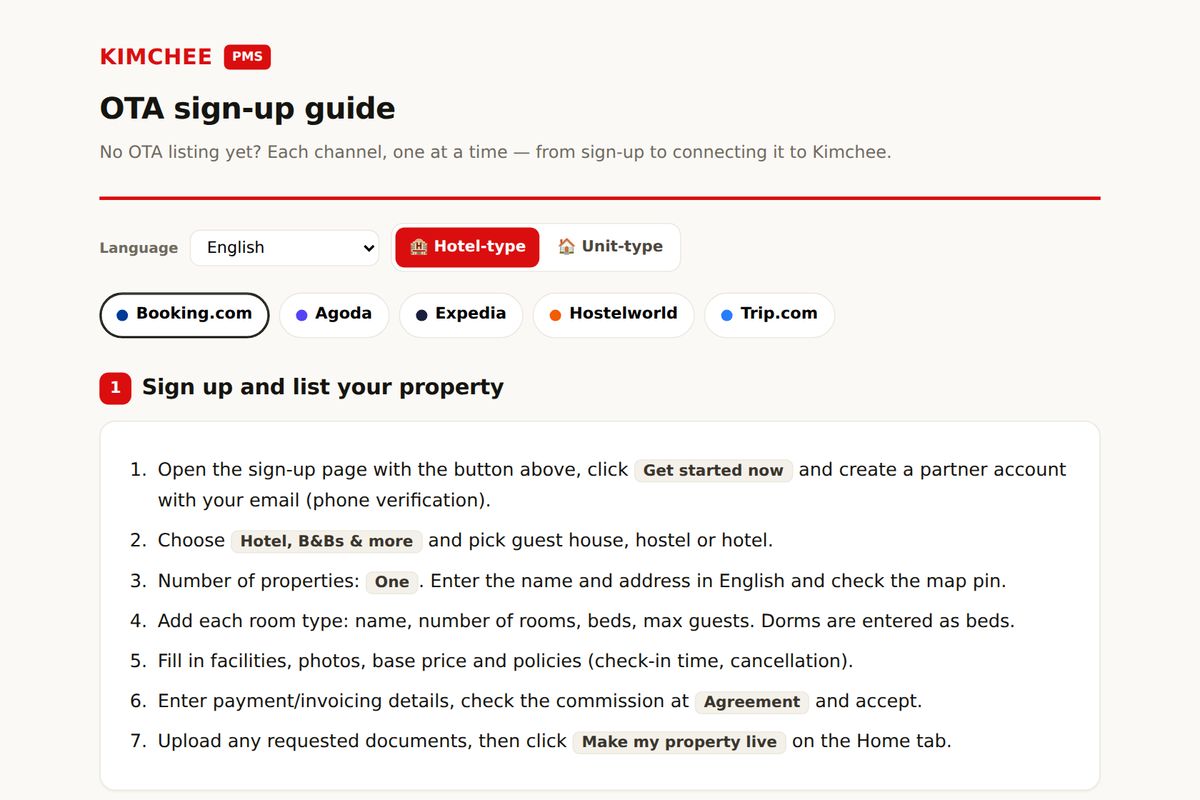
- Open the sign-up page with the button above, click Get started now and create a partner account with your email (phone verification).
- Choose Hotel, B&Bs & more and pick guest house, hostel or hotel.
- Number of properties: One. Enter the name and address in English and check the map pin.
- Add each room type: name, number of rooms, beds, max guests. Dorms are entered as beds.
- Fill in facilities, photos, base price and policies (check-in time, cancellation).
- Enter payment/invoicing details, check the commission at Agreement and accept.
- Upload any requested documents, then click Make my property live on the Home tab.
Unit-type: homes or apartments at different addresses
If you put ten homes at different addresses into one property as ten rooms, a channel manager cannot connect them per unit later. Register one property per address from the start.
- Open the sign-up page with the button above, click Get started now and create a partner account with your email (phone verification).
- Choose Apartment or Homes.
- Register only the first unit: name, address (English), map pin, bedrooms/beds/guests, facilities, photos, price, policies.
- Enter payment/invoicing details, check the commission at Agreement and accept.
- From the second unit on, use Add new property in the extranet, one by one. All units sit together on the group page under the same login.
- Each unit gets its own Property ID. In Kimchee you connect each unit with its own ID.
After you go live: connect a channel manager
When the listing is live, choose Channex as the connectivity provider in the Booking.com extranet and enter the property ID in Kimchee under Channels › Connect & Map. The full extranet steps, and the safe order if you already use another channel manager, are in How to switch your Booking.com channel manager safely. The channel manager is included in the Kimchee plan at no extra cost; see pricing and the list of channels.
Frequently asked questions
How much commission does Booking.com charge?
Booking.com shows the rate for your market during sign-up or in the contract, so check it there before you accept. We do not quote numbers here because they differ by country and change over time.
How long until the listing goes live?
After you complete the steps and any document checks, you open the property yourself with "Make my property live" on the Home tab.
Do I need a channel manager from day one?
Not for a single channel. Once you sell the same rooms on two or more sites, a channel manager keeps availability in sync so one booking closes the room everywhere. How Kimchee works explains the setup.
Can I manage several properties with one login?
Yes. Add each one with "Add new property" in the extranet; they appear together on the group page, each with its own property ID.
Questions about a specific setup? See the FAQ or contact us; we run guesthouses ourselves and answer from that experience.
Run it on a system built by operators
Kimchee is the PMS we use every day across three properties in Busan. The channel manager is included — no separate contract, no per-channel bill.