
How to switch your Trip.com channel manager safely
Switching the channel manager on Trip.com: where to choose Channex in the extranet, what happens to the old provider, and 6 steps that keep your bookings.
The risky moment in a switch is not entering data, it is the hand-over of the OTA connection. If the old provider is cut first, bookings that arrive in between may never reach your new system. If both send availability at the same time, the numbers can fight each other.
Why the order matters
So prepare everything in Kimchee first, switch the provider on the Trip.com side, and only then cancel the old channel manager.
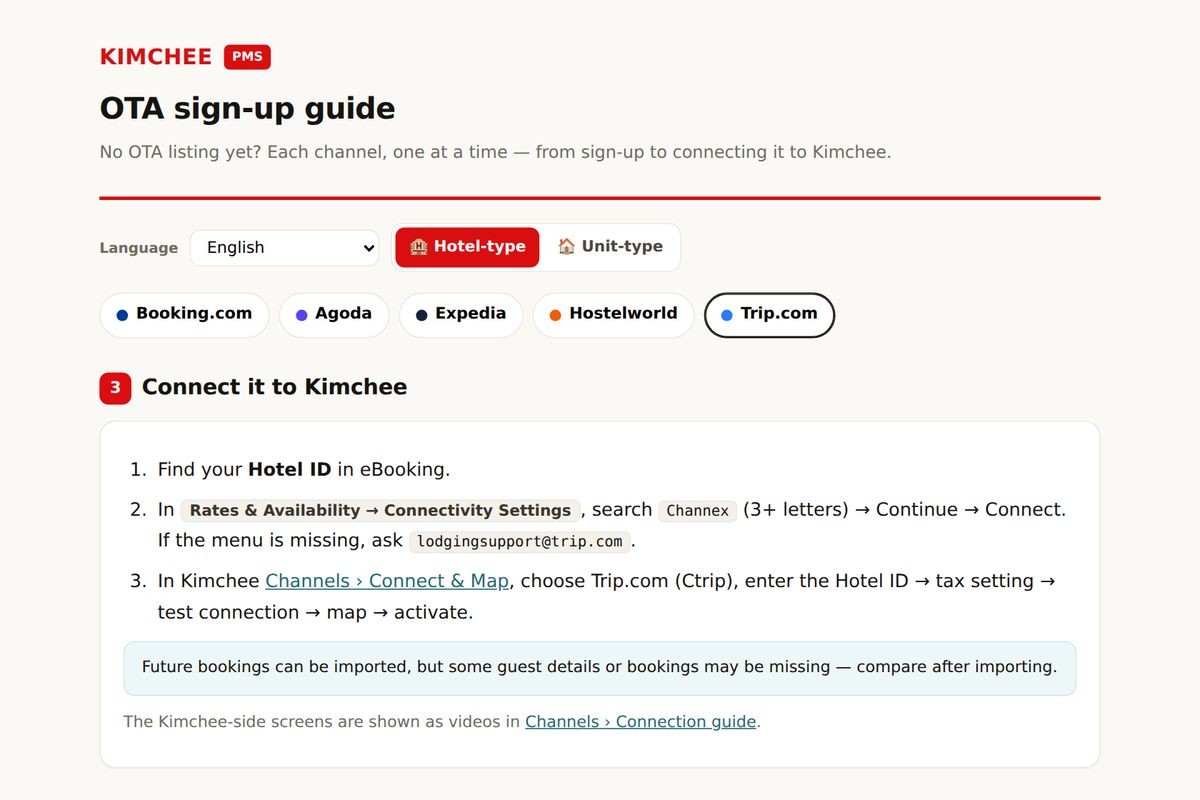
The order matters. If you disconnect the old channel manager first, bookings that arrive in between can be missed.
Before you start
- Your Trip.com property ID and extranet access (2-step verification is often needed)
- Rooms, beds and prices already set up in Kimchee
- A list of all future bookings downloaded from your current system
- A quiet time of day for the switch, not during check-in rush
Moving from another PMS at the same time? Do that migration first and switch the OTA connection last; switching PMS without losing bookings covers the data side, including what to export before you cancel.
In the Trip.com extranet: choose Channex
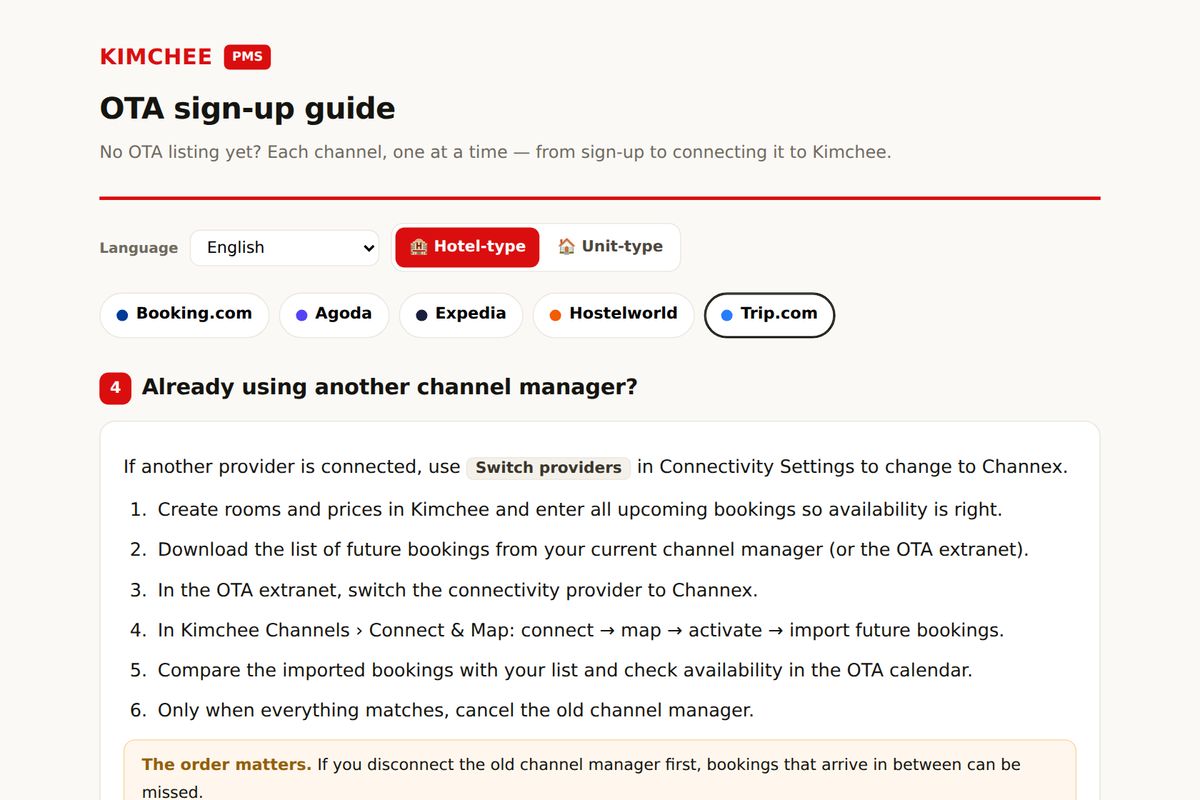
- Find your Hotel ID in eBooking.
- In Rates & Availability → Connectivity Settings, search
Channex(3+ letters) → Continue → Connect. If the menu is missing, asklodgingsupport@trip.com. - In Kimchee Channels › Connect & Map, choose Trip.com (Ctrip), enter the Hotel ID → tax setting → test connection → map → activate.
Future bookings can be imported, but some guest details or bookings may be missing — compare after importing.
What happens to your current channel manager
If another provider is connected, use Switch providers in Connectivity Settings to change to Channex.
The safe order in 6 steps
- Create rooms and prices in Kimchee and enter all upcoming bookings so availability is right.
- Download the list of future bookings from your current channel manager (or the OTA extranet).
- In the OTA extranet, switch the connectivity provider to Channex.
- In Kimchee Channels › Connect & Map: connect → map → activate → import future bookings.
- Compare the imported bookings with your list and check availability in the OTA calendar.
- Only when everything matches, cancel the old channel manager.
Checks after switching
- Imported future bookings match your downloaded list
- Availability in the Trip.com calendar matches Kimchee for the next few weeks
- Prices and minimum stay look right on a few sample dates
- A new booking arrives in Kimchee automatically
Common mistakes
- Cancelling the old channel manager before the new connection is active
- Leaving future bookings out of Kimchee, so availability opens rooms that are already sold
- Mapping only some room types or rates; unmapped ones stop updating
- Editing prices by hand in the Trip.com extranet after the switch; the channel manager overwrites them
What Kimchee does after the switch
From the moment the channel is active, Kimchee sends prices, availability and restrictions to Trip.com and receives new bookings, changes and cancellations back. Rooms and beds are assigned in one calendar together with your other channels, so one booking closes the room everywhere. You keep running the day from Kimchee and use the Trip.com extranet mainly for content, photos, reviews and payouts.
Frequently asked questions
Will my Trip.com listing go offline during the switch?
Not by itself. The listing, its content and reviews stay on Trip.com; only the connection that sends prices and availability changes. Follow the order above so availability is never left empty.
Do I lose my reviews or ranking?
Reviews belong to the listing on Trip.com, not to the channel manager, so changing provider does not delete them.
Can I switch back later?
Yes. The provider is a setting in the Trip.com extranet, so you can change it again. Use the same safe order each time.
How long does the switch take?
The work on your side is usually an hour or two. The Trip.com side can take from minutes to a few days, depending on how the OTA confirms the new provider, so start on a quiet day and keep the old system until the connection is active.
New to Trip.com? Read Trip.com sign-up guide for guesthouses and rental homes.
Questions about a specific setup? See the FAQ or contact us; we run guesthouses ourselves and answer from that experience.
Run it on a system built by operators
Kimchee is the PMS we use every day across three properties in Busan. The channel manager is included — no separate contract, no per-channel bill.